We Will Design Your WordPress Website on HostGator
By Taylor Morgan · Published · 3 minutes read
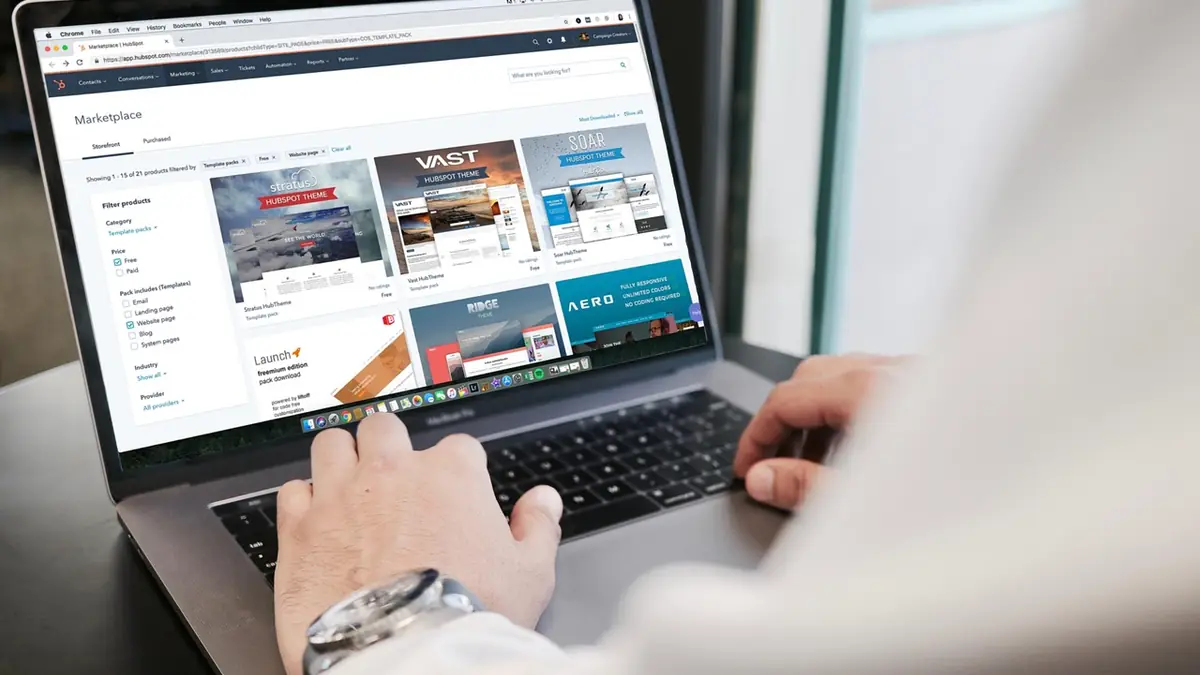
HostGator is one of the most popular shared hosting providers, especially for beginners. Its cPanel interface, one-click WordPress installer, and 24/7 support make it a practical choice for launching a new website without technical headaches.
In this guide, we walk through the entire process: choosing a plan, setting up your domain, installing WordPress, and configuring essential settings. You'll also find realistic cost and performance expectations so you can decide if HostGator fits your project.
Why HostGator for WordPress?
HostGator offers optimized WordPress hosting with features like automatic updates, caching, and a free CDN on higher-tier plans. For beginners, the shared hosting plans are affordable and include a free domain for the first year, which lowers the initial cost. The control panel is standard cPanel, so you get familiar tools like phpMyAdmin and email management.
Performance-wise, HostGator's shared plans are adequate for small sites with moderate traffic (up to ~10,000 visits/month). If you expect rapid growth, consider upgrading to VPS or dedicated hosting. Uptime is generally reliable, though like all shared hosts, resource limits apply. For a deeper comparison of hosting types, see Shared vs VPS Hosting: Which Is Right for Your Website?.
- Free domain for the first year on most plans
- One-click WordPress installation via cPanel
- 24/7 phone and chat support
- 45-day money-back guarantee
Choosing the Right HostGator Plan
HostGator's WordPress hosting comes in three shared tiers: Hatchling (one website), Baby (unlimited websites), and Business (unlimited websites + dedicated IP and SEO tools). For a single WordPress site, Hatchling is sufficient, but Baby is popular because it allows multiple sites and includes a free SSL certificate. Business plan adds speed enhancements like a CDN and caching.
If you're unsure about hosting requirements, read our guide on how to choose a web host for your small business. For most small businesses, the Baby plan offers the best balance of price and features. Expect to pay $3–$6 per month on a 36-month term, renewing at $8–$12/month. The Business plan costs $6–$10/month initially, renewing around $15–$20/month.
Setting Up Your HostGator Account
After purchasing a plan, you'll receive a welcome email with your cPanel login details. Log in to the HostGator Customer Portal to access cPanel. The first step is to point your domain to HostGator's nameservers if you didn't register the domain through them. This usually takes a few hours to propagate.
Next, enable SSL for your domain. HostGator provides free Let's Encrypt SSL, which you can activate in cPanel under 'SSL/TLS Status'. This is crucial for security and SEO. If you need help with domain settings, HostGator's support can guide you. Also, set up your primary email account and configure spam filters.
- Log in to cPanel via Customer Portal
- Update nameservers if using an external domain
- Activate free SSL certificate
- Create email accounts and set up forwarders
| Plan | Websites | Storage | Price (initial term) | Renewal Price |
|---|---|---|---|---|
| Hatchling | 1 | Unmetered | $2.75–$4/mo | $6–$8/mo |
| Baby | Unlimited | Unmetered | $3.50–$6/mo | $8–$12/mo |
| Business | Unlimited | Unmetered | $6–$10/mo | $15–$20/mo |
| Cloud | Unlimited | Unmetered | $9–$15/mo | $20–$30/mo |
| VPS | Unlimited | 120GB+ SSD | $20–$40/mo | $30–$60/mo |
Installing WordPress in One Click
In cPanel, scroll to the 'Software' section and click on 'WordPress Installer' (or QuickInstall). Follow the prompts: choose your domain, leave the directory blank for the root, and enter a site name, admin username, and password. The installer will create the database and install WordPress automatically, usually within a minute.
After installation, log in to your WordPress dashboard at yourdomain.com/wp-admin. Immediately update your permalinks (Settings > Permalinks > Post name) and delete unused plugins and themes. For a detailed checklist on optimizing WordPress after installation, see How to Speed Up Your WordPress Site: Checklist for Beginners.
Essential WordPress Configuration
Start by installing a security plugin like Wordfence or Sucuri to protect against brute-force attacks. Then, set up a backup solution—HostGator offers CodeGuard as an add-on, or you can use a free plugin like UpdraftPlus. For SEO, install Yoast SEO or Rank Math to optimize your content.
Choose a lightweight theme such as Astra or GeneratePress to keep your site fast. Avoid bloated multipurpose themes. Install only necessary plugins; each plugin adds overhead. For caching, HostGator's Business plan includes a built-in cache, but you can also use WP Super Cache. If you're building a site for a business, consider the total cost—see How Much Does It Cost to Build a WordPress Website in 2025?.
- Install a security plugin (e.g., Wordfence)
- Set up automated backups
- Choose a fast, lightweight theme
- Limit plugins to essential ones
Launching and Growing Your Site
Before going live, check your site's speed using PageSpeed Insights or GTmetrix. Aim for a load time under 3 seconds. Enable caching and a CDN if available. Test your contact forms and e-commerce functionality if applicable. Once satisfied, remove the 'coming soon' mode and submit your sitemap to Google Search Console.
To grow traffic, focus on content and SEO. HostGator's hosting can handle moderate traffic, but if you experience slowdowns, consider upgrading to VPS. For monetization ideas, explore What Are the Easiest Ways to Make Money Online? and 10 Best Online Business Ideas to Start Today.
- HostGator's Baby plan offers the best value for most small WordPress sites, balancing price and features.
- Use the one-click installer in cPanel to set up WordPress in minutes, then immediately configure permalinks and SSL.
- Keep your site fast by choosing a lightweight theme, limiting plugins, and enabling caching.
- Monitor traffic and upgrade to VPS if you outgrow shared hosting—typically above 10,000 monthly visits.
Taylor has experience in affiliate marketing and freelance writing. They share practical strategies for making money online without hype. Taylor's articles focus on realistic methods and low-cost startups.